Tech Made Simple · Know where your files live—and how you would get them back.
Your phone says the photos are in the cloud. Your computer says a folder is synced. Somewhere in the settings, there is also a button labelled “Backup.”
It is reasonable to wonder whether those messages all mean the same thing.
They describe different jobs:
| Term | What it does | The useful question |
|---|---|---|
| Storage | Holds your files somewhere | Where is the file? |
| Sync | Keeps selected files or information updated between locations | Where will a change appear? |
| Backup | Keeps a recoverable copy of information | What can I restore if something goes wrong? |
A service can perform more than one of these jobs. Understanding its behaviour matters more than the label on the button.
Storage is where something lives
Your phone has storage. So does your computer, an external drive, and the remote servers used by a cloud service.
Storage gives a file somewhere to exist. It does not, by itself, tell you whether another copy exists.
Imagine moving your only copy of a family video from your computer to an external drive. You have changed its location. If you remove the original, you still have only one copy.
Copying the video and keeping both copies is different.
Buying more space may solve a capacity problem, but the amount of space you own does not tell you how well your files are protected.
Sync keeps things up to date
Sync is useful when you want to work with the same information in more than one place.
You edit a shopping list on your phone, and the updated list appears on your tablet. You revise a document on your laptop, and the newer version becomes available on another computer.
The important detail is that a deletion can also be a change that sync carries elsewhere.
Microsoft’s OneDrive documentation, for example, distinguishes deleting a file from both OneDrive and the computer from using a space-saving feature that keeps the cloud file. Those are different actions. Microsoft: Delete files or folders in OneDrive
Before deleting something to free space, find out whether you are removing a downloaded copy or deleting the file itself.
Backup gives you a way to recover
A backup is a copy you can use when the original is lost, damaged, or otherwise unavailable.
Some backups also retain earlier versions. That can help when you discover that an important paragraph was overwritten or that a folder disappeared several days ago.
However, backups have boundaries. They may cover selected folders, keep only a limited history, or require particular software to restore them.
The Canadian Centre for Cyber Security recommends keeping multiple copies, including one off site, and testing backups. It also explains how an offline copy can remain beyond the reach of many threats affecting connected systems. Canadian Centre for Cyber Security: Tips for backing up your information
Why “it’s in the cloud” needs a follow-up question
Cloud services can provide storage, syncing, backup, or a combination.
Apple offers a useful example. Its documentation explains that iCloud Backup includes device information that is not already synced to iCloud. When iCloud Photos is enabled, those photos are synced separately and are not also included in the daily device backup. Apple: What does iCloud back up?
So a device-backup message does not necessarily mean every item has an additional, independent copy inside that backup.
The follow-up question is: Which information is covered, and how would I recover it?
Picture one family photo
Suppose a photo is saved on your computer.
- If it exists only there, the computer holds your sole copy.
- If it syncs with a cloud library, it may be available elsewhere, but changes can travel between the connected locations.
- If you also keep a separate backup, you have another recovery route, subject to what that backup includes and retains.
Sync can help when a device breaks. A separate backup can help with problems that also affect the synced copy. They can work together.
Give one important folder a checkup
Choose something you care about: family photographs, writing, household records, or a creative project.
Find out:
- Where are the actual files? A filename or thumbnail may represent a file that still needs to download.
- What happens when you edit or delete one? Read the service’s explanation rather than experimenting with an irreplaceable file.
- Is there a separate backup, and when did it last succeed?
- Can you restore a sample file? Recover it to a different folder so you can check it without replacing the original.
A successful sample restore is useful evidence, although it does not prove that every file is covered.
You do not need to reorganize your entire digital life today. Start with one important folder and make sure you can answer:
“If this copy disappeared, where would I get it back?”
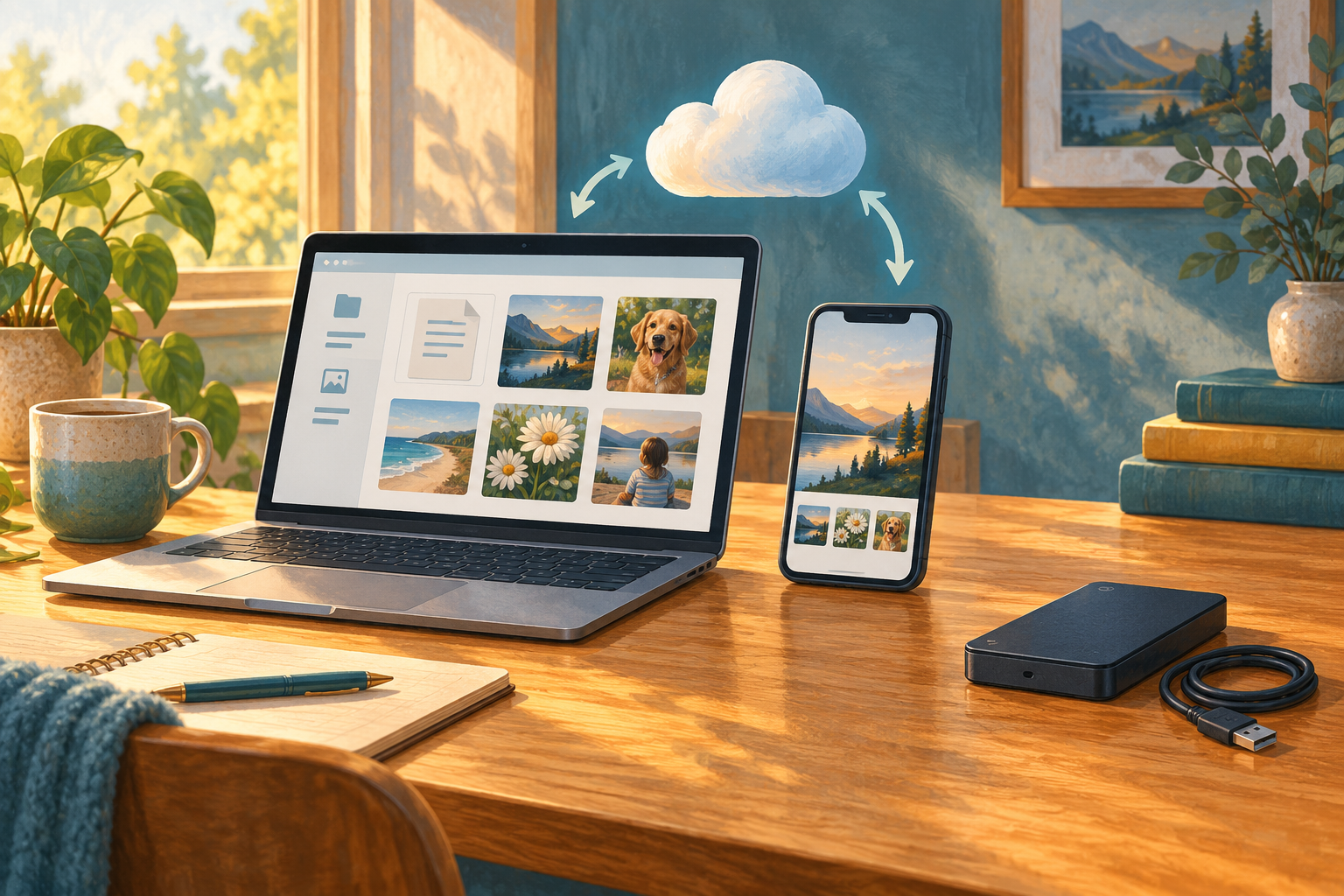
Cover illustration: AI-generated for MagniftySense.